Looking for an app where you can download your favourite anime episodes for instant offline watching? There is an AnimoHub app that has one of the largest databases of anime titles, and the best part is that you can access them all without paying any subscription fees. If you’re the one who wants to download videos from the AnimoHub app, here is a detailed guide to do it with ease.
Whether you prefer to stream or watch offline, AnimoHub offers both options so that you can enjoy watching videos in your own way even if you are travelling or having limited data. Just make sure to use only the latest version of the app or website to avoid download errors, missing buttons, or bugs & glitches.
Does AnimoHub Support Offline Playback?
AnimoHub offers an offline playback feature, allowing you to download your favourite anime for viewing without internet access. Perfect for travel, commutes, or limited data plans, this feature ensures you can enjoy your shows anytime, anywhere, regardless of your connection. However, a few things that you need before downloading any anime title from this app such that every episode is around 500MB to 1GB in size, so you must have sufficient available storage space to be able to download videos from this app.
It has a pause and resume option, so even if you have unstable or limited internet, you can download a video halfway and then resume it later whenever you have access to the internet the next time.
Easy Guide to Download Anime Content From AnimoHub
Downloading Anime content from the AnimoHub app is not a complicated process. The steps outlined below are a detailed guide to downloading videos in selected resolutions and languages on your device for free.
Step 1. Install AnimoHub and AnimoHub Pro App: Start by downloading the latest AnimoHub app so, visit https://animohub.pro/ and click on the Download button to get the latest APK AnimoHub APK file and also download the Pro version of it, which is required for offline playback. Then, install it by following our Installation Guide.
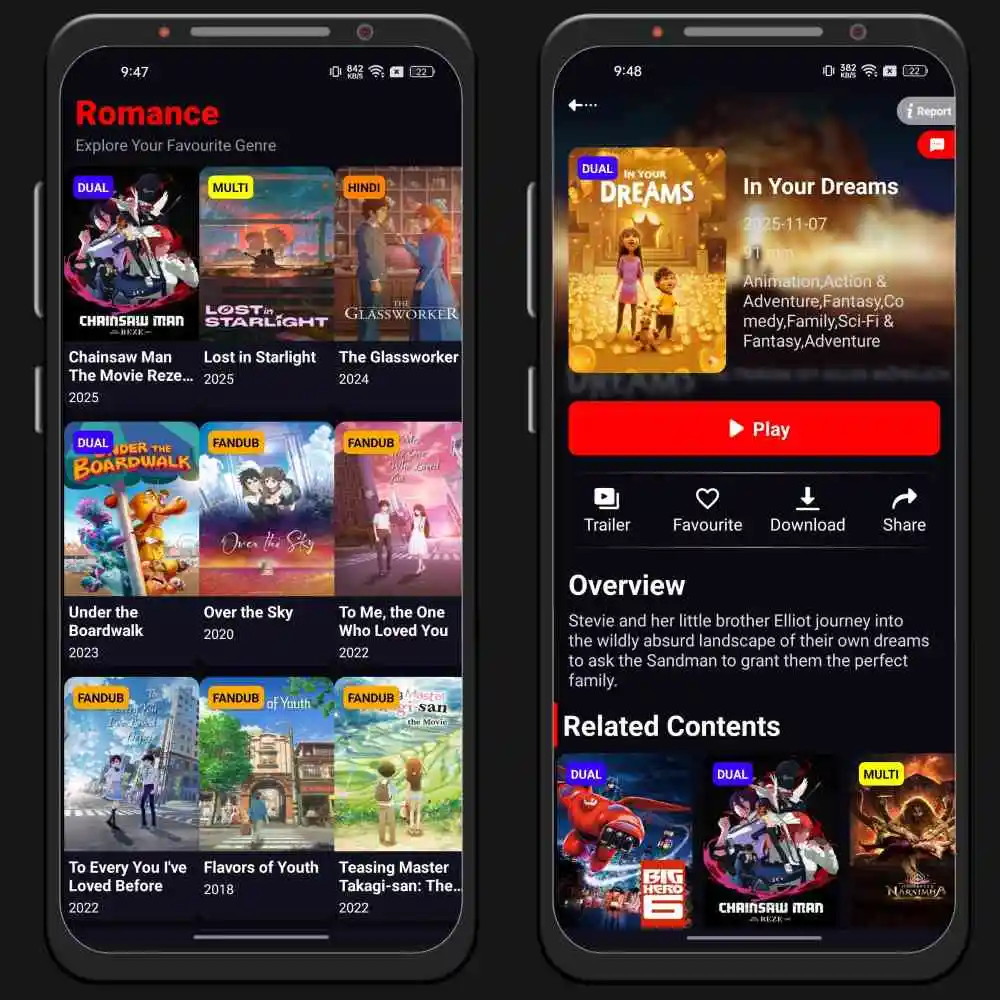
Step 2. Browser Its Content Library: Launch the AnimoHub app to land on its home feed, where you can explore the list of all newly released and trending anime content. You can browse through various genres and sections to explore more diverse content on this app.
Step 3. Select the Video: While browsing through the vast database of content offered by AnimoHub, if you find something interesting to watch on the app, click on the video to open its detail page.
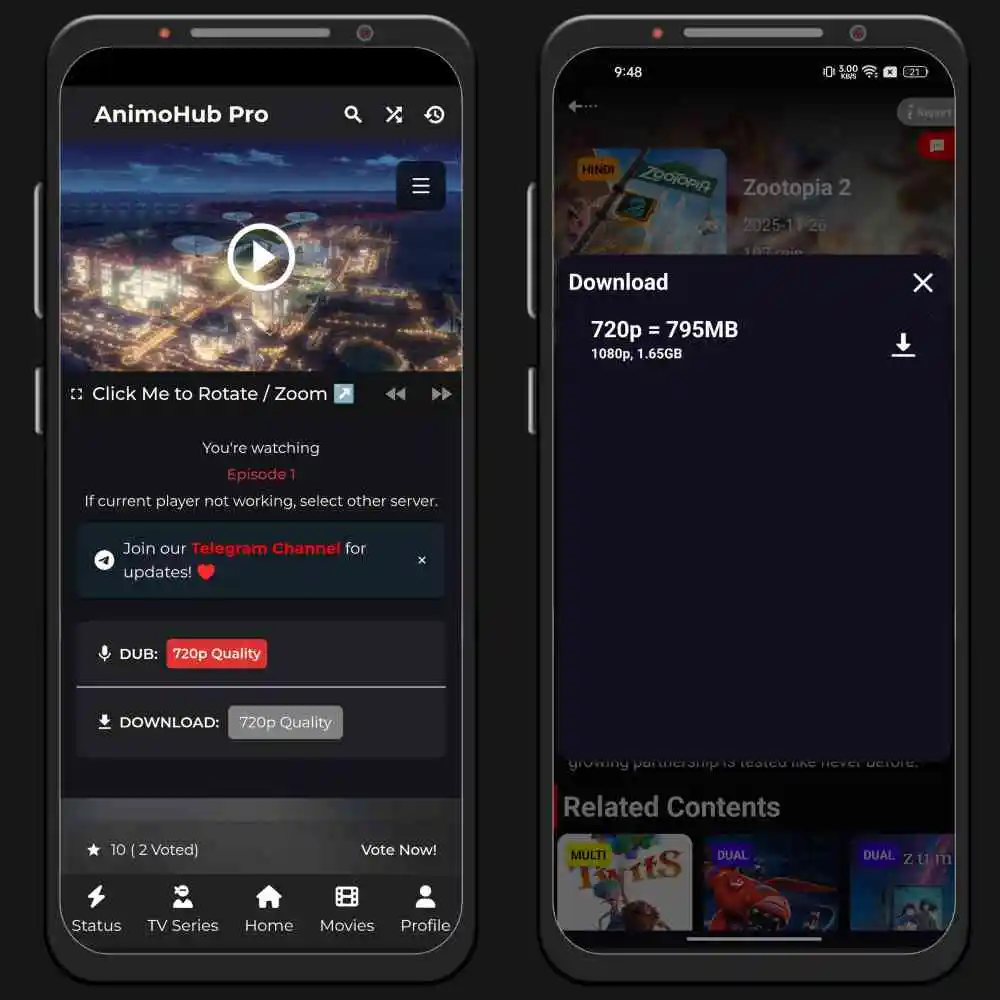
Step 4. Set Up Downloading: Click on the ‘Download’ Button next to the ‘Watch’ button, then it may ask you to choose video resolution, such as 720, 1080p, etc and choose the subtitle/audio track language to start downloading the video.
Step 5. Download the Anime Title: When the video is fully downloaded, you can locate it using the built-in gallery app and use any media player you have on your device to play the video.
Where to Find Downloaded Content and Watch It?
Once you have downloaded your favourite anime movies and series. Follow these steps to locate the downloaded videos to start watching:
- Go back to the home screen of the AnimoHub app.
- Tap on the ‘More’ section at the bottom navigation bar.
- Select the option labelled ‘Downloads’
- Now, you will be able to see the list of all the downloaded videos. You can also check the downloading progress if any video is currently in the downloading process.
- All the downloaded videos will appear here.
- Now, click on any of the downloaded videos that you want to watch. It will start playing even if you do not have internet access.
The videos that you download from the AnimoHub app will be saved in your device’s local storage so you can access them from your default gallery app and use an external media player like VLC or MX Player to play the downloaded content.
Troubleshooting Download Issues on AnimoHub
While downloading videos from AnimoHub, there could be some common issues that a few people may face, so to get them resolved, mentioned below are some of the things you must know.
- Download Button Not Showing: If you select the video that you want to download, but there is no option for downloading the video, it is shown on the screen. This could be because you’re using the outdated version of this app, as the offline playback is a recently added feature in this platform, so check for any updates available and update the app to the latest version.
- Very Slow Downloading Progress: To download videos, a stable and fast internet connection is required. Before downloading your favourite anime and shows, check your internet and make sure it is working decently well. If the issue persists, you can use a VPN.
- Downloading Feature is Not Working: When you open the app for the very first time, it asks for storage access, and if you deny that permission, the app will disable the function of the offline playback feature, so go to the ‘Settings,’ then ‘Apps’ and select the ‘AnimhoHub’. Click on the ‘Permissions’ section and make sure to grant access to the storage permission.
- Unable to Download Videos: Downloading videos sometimes does not work if you do not have sufficient storage space. Therefore, before downloading a video, always make sure to free up storage on your device or change your download location to a memory card if supported.
Conclusion
Downloading Anime from AnimoHub is super quick and easy if you know how to adjust settings properly. If you are downloading high-quality videos, make sure to clear some space on your device and have a stable internet connection.
If you face any problem while downloading episodes, you can clear the cache, switch between networks, or reinstall the app. These small fixes can usually solve the issue. AnimoHub is a useful platform for anime lovers. With proper steps and settings, you can build your own anime library on your device’s internal storage by downloading your beloved anime titles.